Wednesday, 9 March 2011

Famous Motivational Speeches

Examples of Famous Motivational Speeches


Alexander H Stephens Cornerstone Speech
Anthony Eden- The Suez Crisis
Barack Obama Speech - Against Going To War With Iraq
Benazir Bhutto- Male Domination Of Women
Cardinal Clemens Von Galen Speech - Against Nazi Euthanasia
Daniel O Connell- Justice For Ireland
Dianne Feinstein Speech - Global Warming A Time To Act
Dwight D Eisenhower Speech - The Chance For Peace
Elie Wiesel- The Perils Of Indifference
Enoch Powell Speech - Rivers Of Blood
Frederick Douglass - Hypocrisy Of American Slavery
George Patton - Invasion Of Normandy Speech
Golda Meir Speech - Attainment Of Peace
Harold Ickes - What Is An American?
Harold Macmillan Speech - Wind Of Change
James Lavenson - Think Strawberries
J K Galbraith Speech - The Affluent Society
John Reid - The Challenges Of Modern War
John Stuart Mill Speech - In Favor Of Capital Punishment
Mahatma Gandhi - Quit India
Malcolm X Speech - Black Man's History
Malcolm X Speech - Message To The Grassroots
Malcolm X Speech - The Ballot Or The Bullet
Mario Savio - An End To History
Mark Twain Speech - Votes For Women
Nehru Speech - Tryst With Destiny
Nelson Mandela Speech - No Easy Walk To Freedom
Patrick Henry Speech - Give Me Liberty Or Give Me Death
Ray Nagin Speech - Chocolate City
Richard P Feynman - Plenty Of Room At The Bottom
Robert F Kennedy Speech - Death Of Martin Luther King
Robert Menzies - The Forgotten People
Stokely Carmichael Speech - Black Power
Thomas Babington Macaulay - Government Of India
Tony Blair Speech - War With Iraq
William Wilberforce Speech - Horrors Of The Slave Trade

Giuseppe Garibaldi Short Speech - Encourages His Soldiers
John Ball Short Speech - Cast off the Yoke of Bondage

Anna Howard Shaw Speech
Anita Roddick - Trading With Principles
Beth Chapman - Stand Up for America Rally
Carrie Chapman Catt - The Crisis
Courtney Love Speech - On Piracy and Music
Crystal Eastman - Now We Can Begin
Ernestine L. Rose - Address On Woman's Rights
Golda Meir Speech - Attainment of Peace
Margaret Chase Smith - Declaration of Conscience
Margaret Sanger Speech - Morality of Birth Control
Mary Church Terrell Speech - What it Means to be Colored in the U.S.
Mary Fisher - A Whisper of AIDS
Princess Diana Speech - Responding To Landmines
Queen Elizabeth I - The Spanish Armada
Susan B. Anthony - After Being Convicted Of Voting

Tuesday, 8 March 2011

10 MOST USEFUL TIPS FOR IPHONE USERS

The iPhone, like the Mac, is extremely simple and intuitive to use. Odds are that you’ve never even cracked open the user manual since the way just about everything works is pretty obvious.
But its simplicity can be a double-edged sword… there are many small “convenience features” that are often hidden away. If Apple exposed them in a more obvious way, it’d take away from the elegance of the device. And its elegance is one of its strongest points.
I’m sure that many of you are “power users” and probably know most of these tips and tricks. But I suspect that a lot of you are more casual iPhone users and will find this list useful. Even our team members that I showed the draft of this post to (people I consider iPhone experts), all picked up at least a tip or two that they weren’t already aware of. So I’ll bet there’s something for everyone here…

1. Scroll to top

Tapping the status bar (the bar at the top with the clock) will make scrollable content scroll to the top. It comes in handy in situations like when you’ve scrolled down a long web page or mail message and you quickly need to get back to the top.
scroll to top
This may be the most convenient, yet hidden feature on the iPhone. I had my phone for months before stumbling upon it (and I didn’t even stumble upon it by playing around with the phone, but by reading the programming documentation on scroll views).
As far as I know, there’s no corresponding way to scroll to the bottom, though.

2. Screenshots

Simultaneously press the Home and Sleep/Wake buttons to take a screenshot of your current screen. You’ll hear a camera shutter sound, your screen will flash white, then the screenshot will appear in the “Saved Photos” library of the Photos app.
screenshot

3. Saving images in Safari and Mail

Touching an image in Safari or Mail for a couple of seconds will present you with an action sheet which will enable you to save the image. As with taking screenshots, the image will get stored in the “Saved Photos” library of the Photos app.
save image

4. Caps lock

Double-tap the Shift key to lock it.
This one’s actually somewhat intuitive but I was surprised by how many people aren’t aware of it.
shift key
keyboard options Note: For this to work, you need to make sure Enable Caps Lock is turned on in the Keyboard section of General settings.
Along somewhat similar lines, a handy way of saving a tap when you need to type a capital letter is to touch the Shift key then slide over to the desired key. This behavior also works for the Number key.
quick capitals

5. Extra keys

diacritics
Do you need to type an umlauted-u (ü) but you’re not using the German keyboard? Touch and hold the U key and you get a set of additional keys to choose from.
This works for several of the alphabetic keys, enabling you access to letters such as éîçåß, etc.
curly quotes
In addition, there are several punctuation keys that behave similarly, so that you can type curly-quotes, etc.
top level domains
And furthermore, when the keyboard is in “URL-mode”, where the “.com” key is available, touching and holding it pops-up additional options for quickly entering .net, .edu, and .org domains.

6. Lock / shut down / force quit / reset

You’d be surprised to know how many people don’t know how to turn their phone completely off. I’m not talking about “locking” the phone where you simply press the Sleep/Wake button on the top of your phone.
For a while, I was under the false impression that locking the phone was equivalent to putting your Mac to sleep. But when your phone is locked, the screen turns off but the app that’s running at the time continues to run. For instance a relaxation app is able to continue playing sound but save battery power with the screen off. So, locking your phone is actually more like “display sleep” on your Mac (⌃⇧⏏ or Control-Shift-Eject for those of you who can’t read Macroglyphics).
So to ensure that your phone is using as little battery as possible, you’re best off always pressing the Home button before locking so that no app remains running.
Note: Most apps do nothing while the phone is locked but I’ve seen too many apps where this isn’t the case, so I say “better safe than sorry” and usually quit before locking.
To turn your phone completely off, press the Sleep/Wake button for a few seconds then drag the red slider that appears.
turn off
When should you turn your phone completely off? The two situation that I usually do this is when I’m almost out of battery and when my phone is acting kind of wonky.
If your battery’s almost dead and you’re nowhere near some way of charging it your best bet is to turn it off if you’re going to need it to make a call or check something on the ‘net (assuming you can forego and incoming calls/SMSs).
And if your phone’s been acting flaky, where apps are starting to get really slow or behave unexpectedly, turning your phone off then back on usually gets things back to normal.
Have you ever been using an app and it’s become very unresponsive or completely frozen? You can force quit it by pressing the Home button for at least six seconds.
force quit
And finally, if your phone seems to be completely frozen where attempting to turn it off or force quit the current app does nothing, you can force a reset of your phone by pressing both the Sleep/Wake and Home buttons for at least ten seconds. Note that while Apple technically calls this a “reset”, it’s actually more like a “reboot” and none of your settings will be changed.
reset

7. Home button options

home button options
A very underused, yet convenient feature is that you’re able to set the function for double-clicking the Home button. By default, this just brings you to the Home screen, meaning no different function than clicking the Home button once.
But if you go to the Settings app then navigate to General then Home Button, you’ll find a few handy options. I have mine set to go to my Phone Favorites but you can also set it to open the iPod app, or just show the iPod controls when music is playing.
And something I recently noticed after updgrading to the newest iPhone OS is that when you now click the Home button while already on the Home screen, it’ll quickly take you to the first page of apps. This is a great feature if you have your phone filled with apps… and who doesn’t these days?

8. Swipe to delete

In the Mail app and many others that use lists of items, you’re able to quickly delete an item by swiping your finger across the item… sort of emulating crossing something off a list. Doing so exposes a Delete button so that you’re able to confirm your action.
swipe delete

9. Register your Wi-Fi

can’t determine location
Skyhook WPS is the service that, via Wi-Fi, enables your iPhone and iPod touch to locate where you are if GPS isn’t available. It generally gets you more accuracy than the cell tower triangulation method. The big issue with this method, though is that if the router that you’re currently connected to isn’t in the Skyhook database, you’re out of luck.
But after a ton of digging I was able to find the web page where you can add your router to its database:
Skyhook
http://www.skyhookwireless.com/howitworks/submit_ap.php
After a few simple steps and an “up to 7 days” waiting period, the router should be available to help you and others get improved location positioning. This helps us all so do your part and register your router, especially if you live outside a major metropolitan area (since Skyhook usually has the big metro areas covered already).

10. AIM mobile options

If you’re like me, you find the AIM app for the iPhone to be pretty useless. AIM (iChat on the Mac) is my main form of communication these days but if I’m not actually online, I don’t want to be seen as being “online”. One thing I find pretty annoying is IMing someone then not getting a response until like half an hour later. This is the nature of the AIM app on the iPhone so I don’t subject others to behavior I don’t like myself.
There’s a much better way of being “connected” to AIM without having to appear as if you’re there. With AIM (the service, not the app), you’re able to setup your account with a service called AIM Mobile Forwarding so that IMs to you when you’re offline get forwarded to your phone as SMS messages. This isn’t something specific to the iPhone but I found it to be most useful once I got my iPhone because of the iChat-like way that the SMS app works.
AIM Mobile Forwarding can be invaluable in emergency situations if someone has your AIM screenname but doesn’t have your phone number. This actually happened to me recently where the macheist.com domain accidentally expired and I was immediately notified while I was on the road… thanks, Cindy! (In my defense, there’s a long story involving a stolen credit card, defunct phone numbers, and some weirdness with an email address.)
When you have AIM Mobile Forwarding setup and you’re offline, here’s how you appear to others in their buddy lists:
SMS buddy in list
If you’d like to set a custom staus, simply change your status to what you desire before you go offline and it’ll remain while you’re offline:
SMS buddy in list with custom status
The beauty of this is that it instantly conveys, “don’t bug me unless it’s really important”.
Note: It’d be nice if your mobile status got set automatically when you went offline but there’s no simple way I know of doing this. I tried creating a small AppleScript that sets the desired status and set it to run when I logged out. But it needs to run right before logging out so it doesn’t work here. If anyone knows of a non-convoluted way of doing this, I’d really appreciate it if you’d post how in the comments below. log out script
So how do you setup AIM Mobile Forwarding? Simple… if you use iChat, open Preferences and just click the Configure AIM Mobile Forwarding… button in the Accounts tab. This will open a web page where you can enter your info and get it rolling. For those of you who don’t use iChat, the web page is here (warning: will foolishly resize your browser window).
AIM Mobile Forwarding
Similar to AIM Mobile Forwarding, you’re also able to send SMS messages to other’s phones right from iChat (or any AIM client). Just use the Send SMS… item from the File menu.
send SMS
And you can also setup “mobile buddies” so that your buddies who haven’t setup AIM Mobile Forwarding function as if they have. All you have to do is add their mobile phone number as an AIM account, beginning with a “+1”.
setup SMS buddy
And while you’re at it, you may as well add yourself to your buddy list like this. This is very handy for when you’re about to hit the road and you need to send yourself a quick note. It’s definitely one of the easiest ways to to send yourself a note and is a few less steps than sending yourself a note via email.
SMS to self
mobile AIM numbers Note: SMS messages that come from AIM Mobile forwarding come from the numbers 265-060, 265-061, and 265-080 through 265-089 (possibly more but I haven’t seen any others). So if you have these numbers in your contacts and use a name like “Mobile AIM” for the contact, the incoming messages will look a lot neater and will be more easily identifiable to you since they won’t be listed with some seemingly random phone number.
I created a vCard so that you can easily set this up. Simply download it on your Mac, open it to add the contact to your Address Book, then sync to your iPhone and you’ll be good to go.
Mobile AIM.vcf Mobile AIM.vcf


Source : Tap Tap Tap

How to enter into DFU mode in Apple iPhone [Easy understanding Tutorial]

Sometimes when jailbreaking an iPhone or after installing a jailbreak app, your iPhone will get stuck on reboot, or will hang on the Apple logo. This problem happened to me before and it was kind of a nightmare. In order to get your iPhone back on track, you will have to put it in DFU mode (Device Firmware Update mode). This will help you restore your iPhone without loading the OS first.

Putting you iPhone into DFU mode should be used as a last resort if your iPhone is either stuck on the Apple logo or keeps rebooting.

1. Connect your iPhone to iTunes.

2. Hold the Home button and the Power button at the same time for 10 seconds.

3. After exactly 10 seconds, release the Power button but keep holding the Home button for 10 seconds or until iTunes pops up a message saying that it has detected an iPhone in recovery mode. At this point, click OK, then click “Restore” in iTunes.

Note that it often takes several attempts to get your iPhone in DFU mode.


This is the Video Which helps you to understand how to get into DFU mode :


Restart Your iPhone which Strucked at Apple LOGO [COMPLETE EASY GUIDE]

I've received many queries regarding iPhone getting strucked at Apple Logo after installing Cydia Apps (or) any other apps on iPhone.


Is your iPhone Strucked at Apple Logo after installing Cydia Apps?


Is your iPhone strucked at apple logo after a Restart?


Does your Apple iPhone Doesn't Restart?

If So, then this is the right place to look into and get your issue solved.


Below is the Detailed Tutorial on How-To Restart your iPhone without losing any Data or Restoring it again.

THE MOST IMPORTANT POINTS OF RESTARTING YOUR PHONE WITHOUT RESTORING IS GIVEN BELOW :


1) FIRST, YOU SHOULD KNOW WHAT IS POWER BUTTON AND WHAT IS HOME BUTTON.


2) SECONDLY, YOU MUST KNOW WHAT VERSION OF OS YOUR IPHONE IS WORKING ON.


3) DOWNLOAD IPSW FILE OF YOUR IPHONE'S FIRMWARE VERSION.

4) DOWNLOAD redsn0w_win_0.9.6rc8


5) AFTER YOU'VE DOWNLOADED ALL ABOVE FILES, CONNECT YOUR IPHONE TO YOUR PC.


6)  OPEN UP REDSNOW.EXE FILE AND CLICK ON BROWSE TAB.

7) YOU WILL BE PROMPTED WITH A 'BROWSE FOR' WINDOW, SELECT YOUR IPSW FILE WHICH YOU HAVE DOWNLOADED, SELECT IT FROM YOUR PC AND CLICK ON OPEN.


8) AFTER YOU OPEN IT, IT WILL PROCESS THE FIRMWARE AND ASK FOR SOME INFORMATION WITH DETAILS GIVEN, KINDLY GO THROUGH IT AND CLICK ON YES OR NO ACCORDINGLY.


9) AFTER THAT YOU WILL SEE 'IPSW SUCCESSFULLY IDENTIFIED'.


10)  CLICK ON 'NEXT' IT WILL PREPARE JAILBREAK DATA.


11) THEN IT WILL BE PROMPTED WITH A WINDOW CONTAINING MANY OPTIONS, OUT OF THEM DESELECT 'INSTALL CYDIA' AND SELECT 'JUST BOOT TETHERED RIGHT NOW' AND CLICK ON NEXT.


12) ONCE YOU'VE DONE THAT, YOU WILL BE ASKED TO FOLLOW THE INSTRUCTIONS, JUST FOLLOW IT ACCORDINGLY.


13) IF YOU FOLLOW IT PROPERLY, YOU WILL SEE THE REDSNOW SHOWING STARTING UP PHONE AND YOUR PHONE WILL START IN AT THE SAME TIME WITH THE SAME AS IT WAS LAST RESTARTED.


14) THE 13TH POINT PROCESS MIGHT HAVE TO FOLLOW FEW TIMES TO GET IT WORK FOR NEW USERS.

THE SAME ABOVE MENTIONED PROCESS APPLIES FOR THOSE WHO WANTS TO JAILBREAK THEIR PHONE OR INSTALL CYDIA OR INSTALL BUNDLE OR ENTER INTO DFU MODE ETC.

IF IT DOESN'T WORK, DON'T WORRY, DO NOT GIVE UP, KEEP TRYING, IT WILL WORK.

I'VE TRIED FOR MORE THAN 6 TIMES TO MAKE IT WORK AT MY FIRST ATTEMPT.

IF YOU HAVE ANY QUERIES OR QUESTIONS REGARDING ANYTHING ON IPHONE , PLEASE DO NOT HESITATE TO COMMENT.

iPhone IPSW Firmware Downloads


Wondering where you can get all the iPhone firmware files from? Here’s the direct download links for all of the iPhone IPSW firmware files from version 3.0.0 on up through 4.1.0 for iPhone 2G, iPhone 3G, iPhone 3GS, and iPhone 4. Note that we are not hosting the files, they are direct links to Apple’s web servers.

iPhone IPSW Firmware Downloads

The firmware files can be quite large (600MB in some cases) so don’t be surprised if it takes a while to download. It’s easiest to just right-click on the file you want and save it directly, some users experience trouble with Safari when directly clicking the download URL.

IPSW 3.0.0

IPSW 3.0.1

IPSW 3.1.0

IPSW 3.1.2

IPSW 3.1.3

IPSW 4.0.0

IPSW 4.0.1

IPSW 4.0.2

IPSW 4.1.0

IPSW 4.2.1

iOS 4.2 was released as iOS 4.2.1 and this IPSW reflects that:

IPSW 4.2.6

iOS 4.2.6 IPSW is thus far only intended for CDMA iPhone 4 models:
We will update this list when new IPSW releases become available.

Local IPSW File Locations


Any iPhone IPSW files that you have already downloaded from iTunes are stored locally on your machine. You can access these directly at the following locations:
Mac OS X: ~/Library/iTunes/iPhone Software Updates
Windows XP: \Documents and Settings\username\Application Data\Apple Computer\iTunes\iPhone Software Updates
Windows Vista & Windows 7: \Users\username\AppData\Roaming\Apple Computer\iTunes\iPhone Software Updates

What are IPSW files anyway?

The IPSW acronym is thought to stand for iPhone Software. IPSW files are essentially just packages to deliver updates to your iPhone, iPad, and iPod touch including the baseband and firmware. Anytime you update your device iTunes will grab a new IPSW from Apple’s servers. People are generally concerned with IPSW files for either exploration into the workings of iOS and the iPhone, or for jailbreaking and unlocking purposes.

You can find out how to use IPSW files if you are uncertain.

How To Jailbreak iPhone Using Greenpois0n [Windows]

How To Jailbreak iPhone 4, iPhone 3GS On iOS 4.2.1 Using Greenpois0n [Windows]


Chronic Dev Team has just released greenpois0n to jailbreak iOS 4.2.1 for Windows for iPhone 4, iPhone 3GS, iPod Touch 4G,iPod Touch 3G and iPad.

In this guide, we will take you through the step by step procedure to jailbreak your iPhone 4 or iPhone 3GS on iOS 4.2.1 using greenpois0n.

Here are some important points to note before you proceed:
  • Please note that jailbreaking your iPhone may void your warranty and hence proceed with caution and at your own risk.
  • This guide is meant for iPhone 4, iPhone 3GS users only. iPod Touch 4G and iPod Touch 3G, iPod Touch 2G users can checkout this step-by-step guide and iPad users can checkout this step-by-step guide.
  • Greenpois0n supports iOS 4.2.1 and iOS 4.1. So you need to first update your iPhone with iOS 4.1 or iOS 4.2.1 to use greenpois0n. Please do NOT upgrade to iOS 4.1 or iOS 4.2.1 if you want to unlock your iPhone.
  • Please note that this guide is only meant for Windows users. Mac users can refer to this step-by-step guide.
  • greenpois0n does NOT hactivate your iPhone, so your iPhone should be activated via iTunes first.
  • Do not forget to backup your iPhone before you proceed. You can refer to this post for instructions on how to backup your iPod Touch.
  • Please ensure you are running latest version of iTunes, iTunes 10.1 or later.
  • After the jailbreaking process is complete, do not forget to checkout our article on tips to keep your iPhone secure.
You can follow these step-by-step instructions to jailbreak your iPod Touch:
  1. Go to http://www.greenpois0n.com/ and click on the Windows icon to download the latest version of greenpois0n. If the greenpois0n site is down then you can checkout this mirror site.
  2. Double click the greenpois0n zip file to extract the file and double click greenpois0n to launch the application.
  3. Next connect your iPhone to the computer and power it off.
  4. Then click on the Prepare to Jailbreak (DFU) button.
  5. You will be prompted to put your iPhone in DFU mode. Greenpois0n will take you through the necessary steps.
  6. Press and hold the Sleep/Wake button for 2 seconds.
  7. Keep holding the Sleep/Wake button and also simultaneously also press and hold the Home button for 15 seconds.
  8. Then release the Sleep/Wake button but continue holding the Home button for 15 seconds.
  9. Once the iPhone enters DFU mode, you should see Ready to Jailbreak, now click on the Jailbreak button.
  10. You should see greenpois0n jailbreaking your iPhone.
  11. After jailbreaking is complete, you should see the Quit button, click Quit button to close the application. You should see text in verbose mode scrolling on your iPhone’s screen.
  12. Your iPhone will reboot. After it has rebooted, you’ll notice that there is a new Loader application on your iPhone’s home screen.
  13. Tap on it to launch it. Select Cydia and then tap on Install Cydia button.
  14. After you have successfully installed Cydia, you can uninstall the Loader application as it is no longer required. Tap on the Options button and then Remove Loader.app button to uninstall it.
  15. That’s it, your iPhone is successfully jailbroken and you should see Cydia on the homescreen. Reboot your iPhone and launch Cydia to install the latest updates.
If you're new to the jailbreaking world and wondering what to do after jailbreaking your iPhone, checkout our jailbreak apps category page to find out the apps you can install on your iPhone using the Cydia app, which is the App Store for jailbreak apps.
Troubleshooting steps:
  • You can checkout our post with all the troubleshooting tips if you had problems jailbreaking your iPhone.
  • If you don't see Cydia in the Loader app after launching it then you can install Cydia using Redsn0w 0.9.6 RC8 (download link). You should just select Install Cydia from the list of options and don't use the Monte option.
  • Greenpois0n recommends a clean restore so if the above steps don’t work then you can try to restore your iPhone if you desperately want a jailbreak as it is not ideal.
  • Connect your iPhone directly to your computer (not via a USB hub).
Updated: Greenpois0n does not support iPhone 3G, we've updated the post to remove references to iPhone 3G. Apologies for the inconvenience caused.
As always, let us know how it goes and if you have a tip that helped you jailbreak your iPhone using greenpois0n successfully then do share it in the comments section below.


Jailbreak iOS 4.2.1 with Ultrasn0w by Taimur Asad

Jailbreak iOS 4.2.1 on iPhone 4, 3GS Untethered with PwnageTool and Unlock with Ultrasn0w [How to Guide]


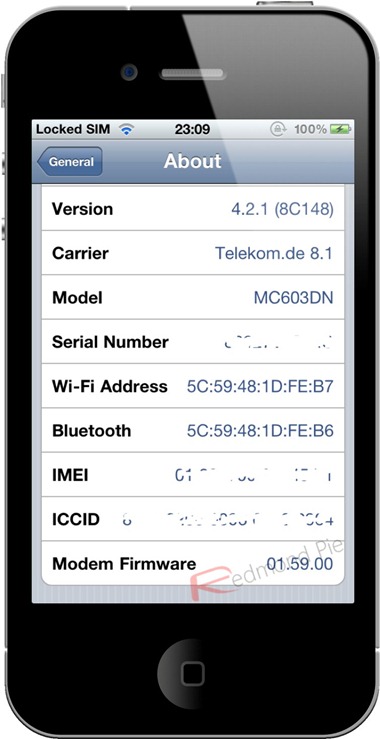
iPhone developer and hacker Nadeem97 has released PwnageTool bundles which can jailbreak iPhone 4 and 3GS untethered on iOS 4.2.1, in the process preserves the old 01.59.00 baseband for iPhone 4 and 05.13.04 baseband for iPhone 3GS so that you can unlock with the existing version of Ultrasn0w.


Step 1: Download untethered PwnageTool bundle for iPhone 4 and iPhone 3GS from here. Extract the .zip folder, in there you will find two .bundle files, info.plist and some other files.

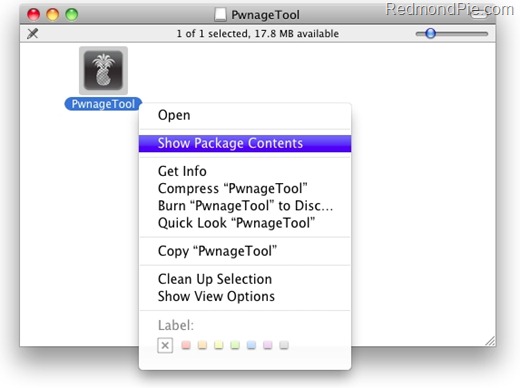
Step 2: Download PwnageTool 4.1.3 and copy it to your desktop. Right click, and then click on “Show Package Contents” as shown in the screenshot below.


Step 3: Navigate to Contents/Resources/FirmwareBundles/ and paste iPhone3,1_4.2.1_8C148.bundle for iPhone 4, or iPhone2,1_4.2.1_8C148a.bundle for iPhone 3GS in this location.

Step 4: Now navigate to Contents/Resources/CustomPackages/CydiaInstaller.bundle/ and here copy the info.plist file and then simply close this folder.
Step 5: Download iOS 4.2.1 for iPhone 4 or 3GS. Move this IPSW file to your desktop.

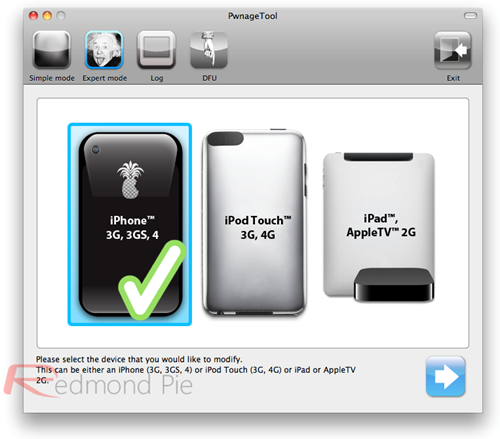
Step 6: Start PwnageTool in “Expert mode” and select your device:


Step 7: Browse for iOS 4.2.1 firmware for your device.

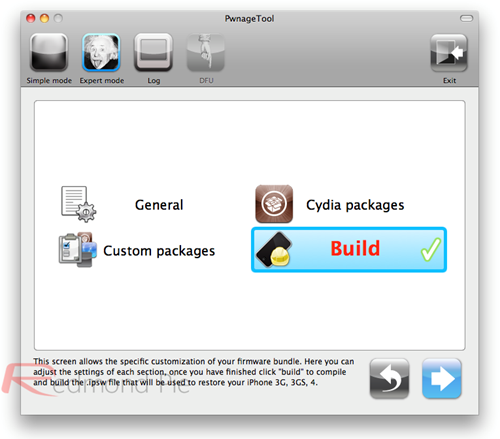
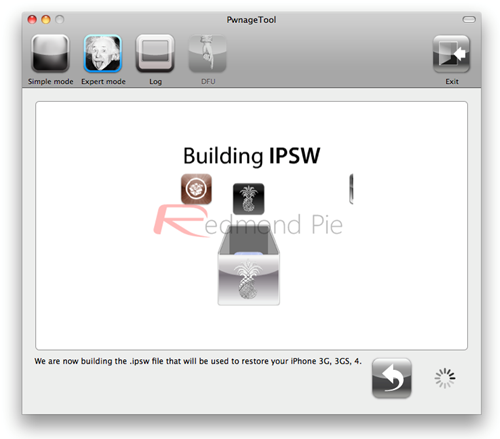
Step 8: Now before proceeding with the create-the-bundle process, make sure “Activate the Phone” option is unchecked under “General”, and “Cydia Installer” package is selected under “Cydia Packages” option. Once done, select “Build” to start creating custom 4.2.1 firmware file:


Step 9: PwnageTool will now create the custom .ipsw file for your iPhone which will be jailbroken.


Step 10: Now follow the following steps to enter DFU mode:
  • Hold Power and Home buttons for 10 seconds
  • Now release the Power button but continue holding the Home button for 10 more seconds
  • You device should now be in DFU mode


Step 11: Start iTunes, click on your iOS device icon from the sidebar in iTunes. Now press and hold left “alt” (option) button on Mac, or Left “Shift” button if you are on Windows on the keyboard and then click on “Restore” (Not “Update” or “Check for Update”) button in the iTunes and then release this button.


This will make iTunes prompt you to select the location for your custom firmware 4.2.1 file. Select the required custom .ipsw file and click on “Open”.


Step 12: Now sit back and enjoy as iTunes does the rest for you. This will involve a series of automated steps. Be patient at this stage and don’t do anything silly. Just wait while iTunes installs firmware 4.2.1 on your iPhone. Your iOS device screen at this point will be showing a progress bar indicating installation progress. After the installation is done, your iPhone will restart automatically and you should now have a fully jailbroken iPhone 4 or 3GS, untethered on iOS 4.2.1.

Step 13: Once you have jailbroken your iPhone 4 or 3GS, you can safely unlock it on iOS 4.2.1 (on 01.59.00 baseband for iPhone 4 and 05.13.04 baseband for iPhone 3GS) using Ultrasn0w 1.2.

UPDATE 1: The link above of PwnageTool bundle for iPhone 4 and 3GS has been updated. All problems related to Cydia should now be fixed. Thanks to Nadeem97 for the heads up!

Source: Redmondpie

Sunday, 6 March 2011

The Latest Apple and Microsoft Gadget.

Ipod, Iphone, Macs and More


Apple is always working on something cool find out here what hot and what's coming. Look around for that ultimate Apple product. Find out all about ipod's the hottest and laster itouch, iphones, macbooks and imac's.

I was lucky my 1st experience with a mac was in High School in 1990. My Physic's class had a grant and we had a whole computer lab full of Mac's. We could spend study hall in the lab so I lived their. I also remember a couple friends have the old apple IIC and playing with that.

Later I worked as and Network Admin for a company that had a large catalog and they did all there graphic work on mac's. I had to learn to support them which was a blast. Mac are great because they are easy to work on and don't really break.
Currently, there are some rumors about  two new “tablet” projects: Apple iTablet and Microsoft Courier.

Two new gadgets for 2010: Apple iTablet and Microsoft Courier
As for the Microsoft Courier, apparently, this Tablet PC is in the last stage of development and its features would make it look more like a Booklet than a Tablet PC. Although an official introduction of this device has not been carried out, Microsoft is already studying impressions of some users that have used a Tablet PC, which is a term that refers to computers equipped with a touchscreen (or graphics tablet/screen hybrid) and complex settings, applications and modes.
microsoft-courier
At the moment it is known that (with regard to the features of the new Microsoft product) it will have a dual 7-inch display with multitouch support where the user will be able to turn over pages, write,  and draw by using the fingers or a stylus pen. The display also will show the battery level and the internet connection status on a side area. In addition, the Microsoft Courier will come with a photo camera on the back of the device, but it is unknown how many pixels will be featured.


As for the Apple iTablet, the only thing that is known at this point is Asus will collaborate with Steve Job’s company to create this gadget. And, the rumors also suggest that Apple would be focused on creating this device in order to close the gap between the cost of producing an iPod (retail price of about US$200) and the cost of producing a MacBook (retail price = US$999). For that reason, it is believed that the retail price of an Apple iTablet would be close to US$ 700.
The design of the Apple iTablet is still a mystery, although some analysts predict it will look like an iPod Touch with bigger dimensions. On the other hand, a non-official picture was published on the web but it is very probable that it is a fake picture, judging by its poor design. In addition, some days ago, a video that is supposed to demonstrate a tablet-optimized Wired edition in a Apple iTablet was also published… no official comments from Apple yet. You can see the video below:


THE CHANGE IS HAPPENING!


Is It Happening?
 
Yes. Earth is already showing many signs of worldwide climate change.
• Average temperatures have climbed 1.4 degrees Fahrenheit (0.8 degree Celsius) around the world since 1880, much of this in recent decades, according to NASA's Goddard Institute for Space Studies.
• The rate of warming is increasing. The 20th century's last two decades were the hottest in 400 years and possibly the warmest for several millennia, according to a number of climate studies. And the United Nations' Intergovernmental Panel on Climate Change (IPCC) reports that 11 of the past 12 years are among the dozen warmest since 1850.
• The Arctic is feeling the effects the most. Average temperatures in Alaska, western Canada, and eastern Russia have risen at twice the global average, according to the multinational Arctic Climate Impact Assessment report compiled between 2000 and 2004.
• Arctic ice is rapidly disappearing, and the region may have its first completely ice-free summer by 2040 or earlier. Polar bears and indigenous cultures are already suffering from the sea-ice loss.
• Glaciers and mountain snows are rapidly melting—for example, Montana's Glacier National Park now has only 27 glaciers, versus 150 in 1910. In the Northern Hemisphere, thaws also come a week earlier in spring and freezes begin a week later.
• Coral reefs, which are highly sensitive to small changes in water temperature, suffered the worst bleaching—or die-off in response to stress—ever recorded in 1998, with some areas seeing bleach rates of 70 percent. Experts expect these sorts of events to increase in frequency and intensity in the next 50 years as sea temperatures rise.
• An upsurge in the amount of extreme weather events, such as wildfires, heat waves, and strong tropical storms, is also attributed in part to climate change by some experts.
Are Humans Causing It?
• "Very likely," the IPCC said in a February 2007 report.
The report, based on the work of some 2,500 scientists in more than 130 countries, concluded that humans have caused all or most of the current planetary warming. Human-caused global warming is often called anthropogenic climate change.
• Industrialization, deforestation, and pollution have greatly increased atmospheric concentrations of water vapor, carbon dioxide, methane, and nitrous oxide, all greenhouse gases that help trap heat near Earth's surface. (See an interactive feature on how global warming works.)
• Humans are pouring carbon dioxide into the atmosphere much faster than plants and oceans can absorb it.
• These gases persist in the atmosphere for years, meaning that even if such emissions were eliminated today, it would not immediately stop global warming.
• Some experts point out that natural cycles in Earth's orbit can alter the planet's exposure to sunlight, which may explain the current trend. Earth has indeed experienced warming and cooling cycles roughly every hundred thousand years due to these orbital shifts, but such changes have occurred over the span of several centuries. Today's changes have taken place over the past hundred years or less.
• Other recent research has suggested that the effects of variations in the sun's output are "negligible" as a factor in warming, but other, more complicated solar mechanisms could possibly play a role.
What's Going to Happen?
A follow-up report by the IPCC released in April 2007 warned that global warming could lead to large-scale food and water shortages and have catastrophic effects on wildlife.
• Sea level could rise between 7 and 23 inches (18 to 59 centimeters) by century's end, the IPCC's February 2007 report projects. Rises of just 4 inches (10 centimeters) could flood many South Seas islands and swamp large parts of Southeast Asia.
• Some hundred million people live within 3 feet (1 meter) of mean sea level, and much of the world's population is concentrated in vulnerable coastal cities. In the U.S., Louisiana and Florida are especially at risk.
• Glaciers around the world could melt, causing sea levels to rise while creating water shortages in regions dependent on runoff for fresh water.
• Strong hurricanes, droughts, heat waves, wildfires, and other natural disasters may become commonplace in many parts of the world. The growth of deserts may also cause food shortages in many places.
More than a million species face extinction from disappearing habitat, changing ecosystems, and acidifying oceans.
• The ocean's circulation system, known as the ocean conveyor belt, could be permanently altered, causing a mini-ice age in Western Europe and other rapid changes.
• At some point in the future, warming could become uncontrollable by creating a so-called positive feedback effect. Rising temperatures could release additional greenhouse gases by unlocking methane in permafrost and undersea deposits, freeing carbon trapped in sea ice, and causing increased evaporation of water.
Source : National Geographic

Saturday, 5 March 2011

LIFE IS NOT WHAT YOU EXPECT IT TO BE, IT IS THAT WHAT YOU MAKE IT TO BE.(Part-I)


Many times you would have noticed or thought about this thing:

“When you are free, you will have nothing to do;
But, when you’re busy, you will be loaded with lots of unfinished work”

That explains a little percent of what Life is like when you’re free and how is it when you are not!
I guess this will do for today !

IF YOU HAVE EXPERIENCED IT, THEN TALK TO US. 

With this little saying I start, and will never end  till we’re pured!

Regards!